Agents allow autonomous AI functions to run as part of Decision Flows. Agents can be used in conjunction with queried result sets, MCP services and "tools," and external data references to auto-analyze data. Based on those results they can trigger subsequent steps in the flow, effectively allowing the agent to drive decisions and perform tasks to achieve specific goals.
Note: This feature requires specific licensing options
Adding an Agent to a Decision Flow
Before you begin
- You can only make use of Agents in environment where an LLM Provider is enabled. For more information, see AI Settings.
- You must have access to an Agent in the Content Manager. For information about creating Agents, see Agents.
Note: The Agent node will not show up unless you are building a decision flow model
Sharing Private Data
Agents will incorporate the actual data from their attached sources into their calculus. This allows the AI agents to evaluate the results in addition to incorporating feedback from other sources. The Discover queries or Tabulate spreadsheets, like all content, is sourced typically from your organizations internal data and is refreshed each time the agent is run in a decision flow.
Users should ensure that the data in their queries and spreadsheets can be shared with third-party AI services and LLM vendors before using this feature.
Adding a New Agent
Tip: The Bot Wizards in Discover and Tabulate can be used to automate the process of creating agents and a parent decision flow, instead of manually creating them manually.
Open a Decision Flow in the Master Flow page:
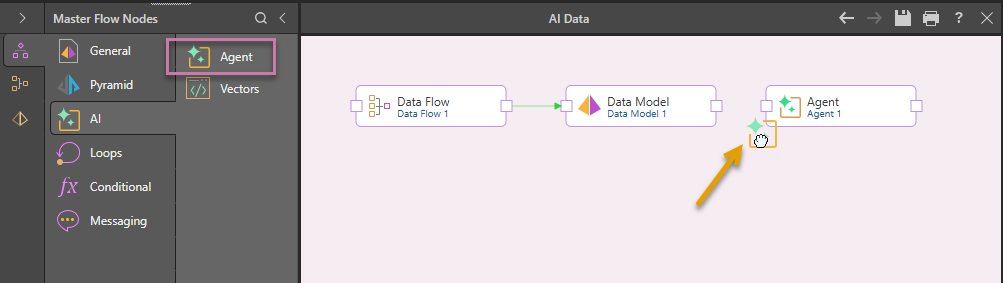
- From the AI options in the Master Flow Nodes panel, drag-and-drop Agent onto the canvas:
- Connect the Data Model node to the new Agent node:
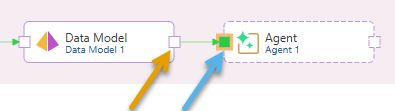
The connection is created by selecting the "end connector" (orange arrow) on the source node and then dragging your cursor to the "start connector" (blue arrow) on the target node. Once you select the target and release your mouse button, the connecting arrow is drawn.
What next?
You should finish building your Decision Flow. For example, you might want to add an Email node to provide feedback to a manager that tasks are complete.
- Click here to see a basic Decision Flow walkthrough.